
Introduction
So, in today's post, I wrote a guide about building a website from scratch. It will look at what you need to do to go from having some HTML files to having a live website that people can access.
Overview
Since I have done this successfully before, I decided to write this guide. Currently, there are many guides online, but these guides provide some steps. So, I made this guide, It's not new but a new approach that priorities cost, scalability and also security. If you are reading this, please like and refresh the page to give me some traffic :D
Our Goal is to build a website from some HTML files is cheap, efficient, and easy.
Who is this for? I wrote this post for people who know how to program and have basic knowledge of websites, servers, domains, etc. This tutorial will skip some steps in detail.
If you have any question, don't hesitate to email me, send me message via Linkedin. Let's start!!!!
What You Need (Ingredients)
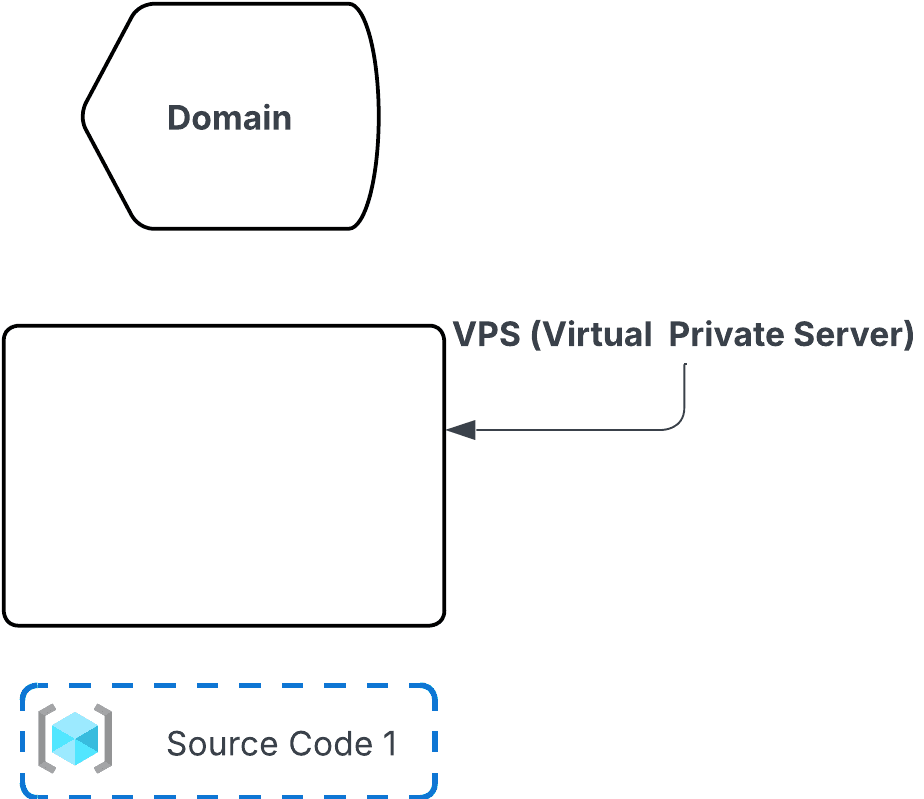
- Domain.
- VPS (Virtual Private Server).
- Source Code.
However, I needed more storage for further projects in the future, so I chose a provider called HyperCore VN. It offers a discount that unlimited bandwidth and 40GB storage for about $35/year.
Some of you might ask: "Why not use AWS or Azure? They have 'pay as you go' options and can be very cheap." Well, first, signing up requires some initial cost, and they are quite complex to use. People even study for special certificates just to use AWS and Azure!
Also, these providers should be use for business project, big project. In my opinion, if you rely too much on one big provider, they decide if your system is strong or weak, not you. And after a long time, you can forgot how to build a website when these providers are not available. So remember out goal at the beginning : FREE and EASY In total, you will need about $31 for the initial cost. With this cost, you have full control to develop your own applications in 1 year.
There are three ingredients we got:
Steps
Part 1: DNS
Many people suggest using CloudFlare, which is one of the biggest DNS providers right now. However, in 2025, 2 outages have appeared on November 18, 2025 and December 5, 2025? I've lost faith in CloudFlare.
Instead, choose an other provider. They are strong enough, simple but give me more control. Personally, I have chosen dns.he.net since 2010.
Step 1: Register account dns.he.net
Step 2: Add nameserver
- ns1.he.net
- ns2.he.net
- ns3.he.net
- ns4.he.net
- ns5.he.net
Step 3: Add records in dns.he.net
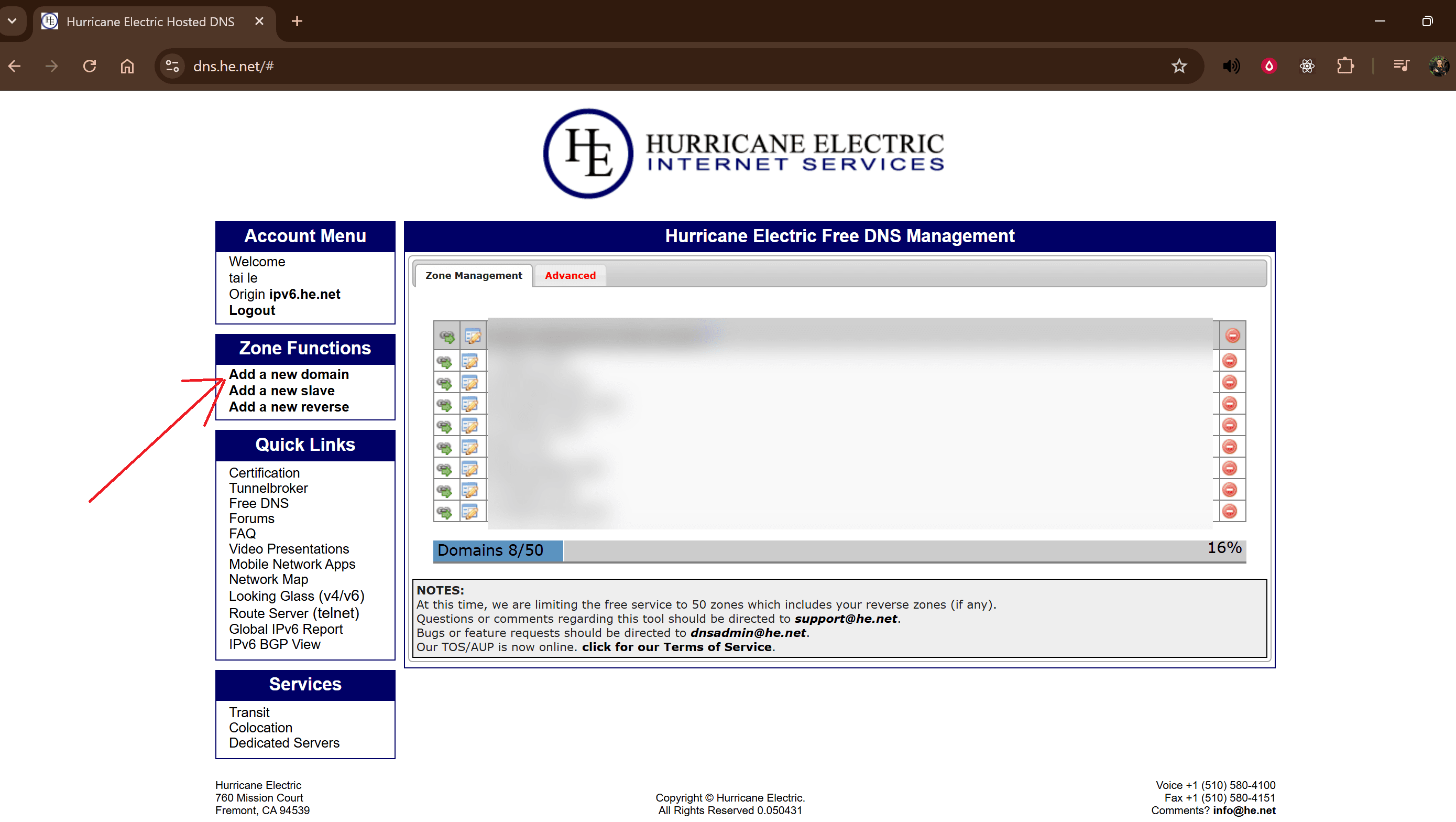
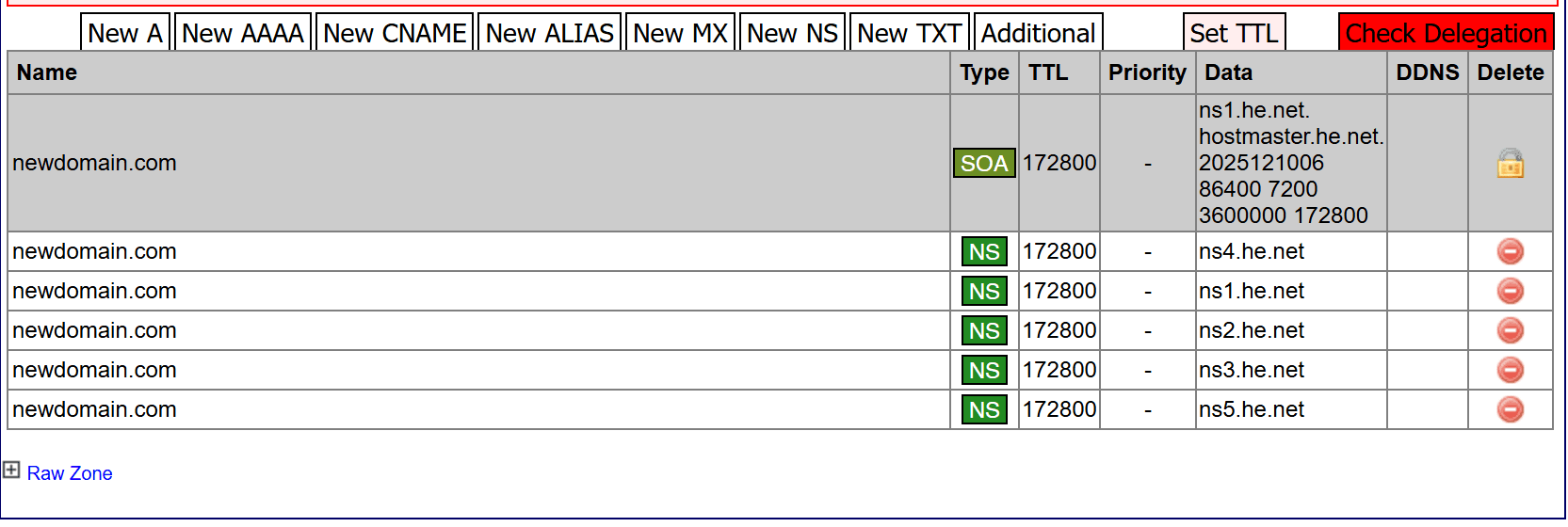
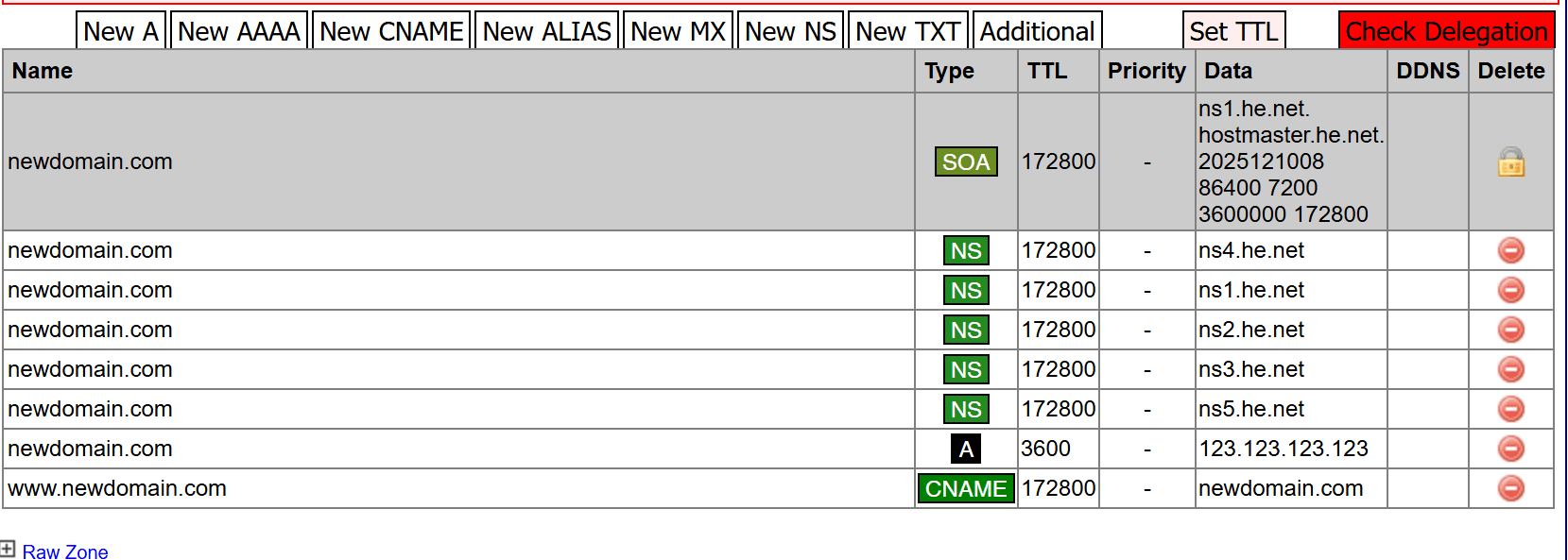
If you want people to access your website using www. , you also need to add a CNAME record. This is optional, so you do not have to do it if you don't want to.
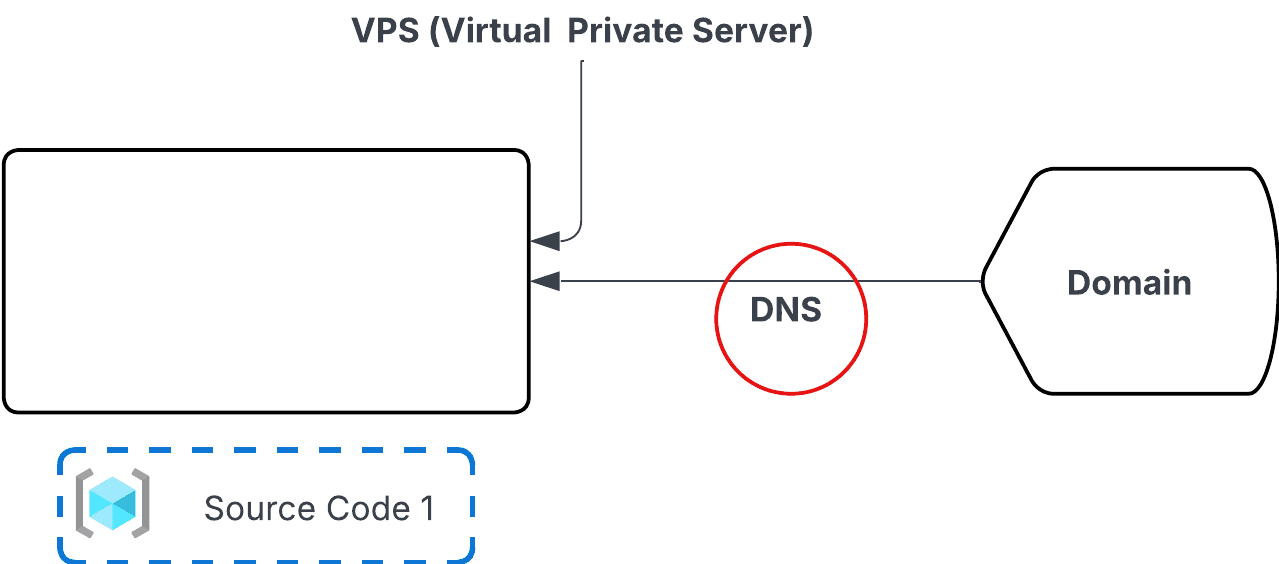
The result will look like this:
Part 2: Preparing the VPS
Step 1: Install Docker
Step 2: Create a Docker Network
However, for this guide, I will assume you have already successfully knew how to creat new users for your projects.
Step 3: Install Git and Setup SSH
- Install Git: sudo apt-get install git
- Create an SSH key: Run this command (replace with your actual email): ssh-keygen -t ed25519 -C "email_github@email.com"
- Start the ssh-agent: eval "$(ssh-agent -s)"
- Add your private SSH key: ssh-add ~/.ssh/id_ed25519
- Get the public key: Run this command to see your key: cat ~/.ssh/id_ed25519.pub
Copy the key that appears and add it to your GitHub account here: https://github.com/settings/keys - Create the file: touch ~/.ssh/authorized_keys
- Open the file using Nano and paste the public key inside: nano ~/.ssh/authorized_keys
- Restart the VPS SSH service: sudo systemctl restart ssh
- Check the connection to GitHub: Test if it works by running: ssh -T git@github.com
Or, try port 443: ssh -T git@ssh.github.com -p 443
Refer tutorial : https://docs.github.com/en/authentication/connecting-to-github-with-ssh/generating-a-new-ssh-key-and-adding-it-to-the-ssh-agent https://docs.github.com/en/authentication/connecting-to-github-with-ssh/adding-a-new-ssh-key-to-your-github-account
Step 4: Create a Folder for Your Code
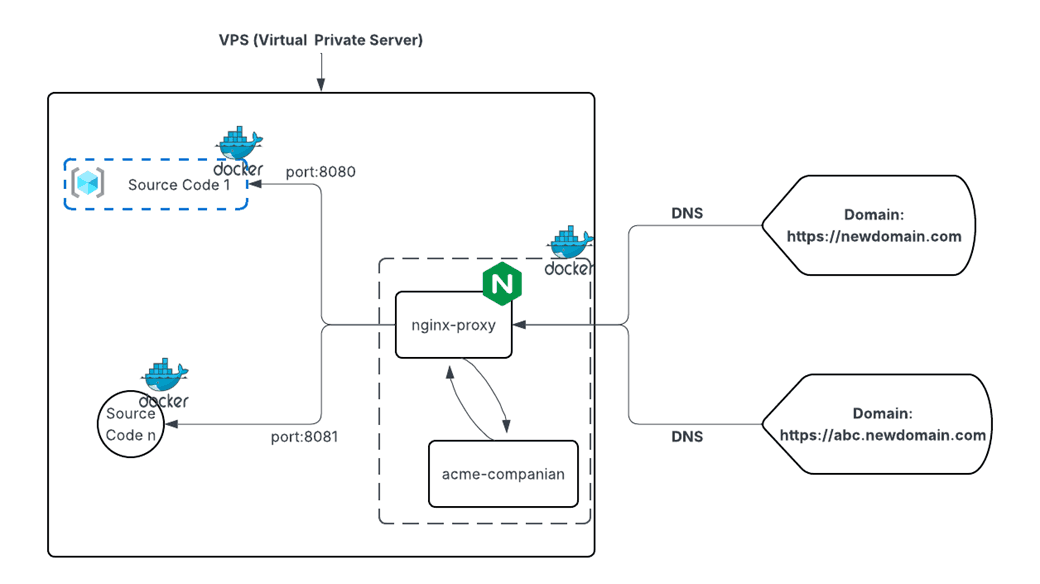
Part 2 : Nginx web server
Step 1: Configure GitHub Actions
on:
  push:
    branches:
      - feature/final
You need to set up these variables (Secrets):
- ONLINE_HOST: The IP address of your VPS.
- ONLINE_USERNAME: The username of your VPS.
- ONLINE_SSH_PRIVATE_KEY: The SSH private key generated from your VPS.
How to get it: Run this command on your VPS: cat ~/.ssh/id_ed25519 - ONLINE_PATH_PROJECT: The folder where the code will be pulled on the VPS.
Value: As mentioned before, this should be /tmp/your-folder
Go to your project Settings.
Go to Secrets and variables -> Actions.
Click on New repository secret. The settings are at this URL: https://github.com/astropop/my-nginx/settings/secrets/actions . Change astropop/my-nginx to your repository. When you push code to the feature/final branch, the github will automatically run CI/CD and redeploy the project into VPS.
Step 2: Edit the Docker Compose File
- Update the Network Name: Change the network name my_tailt_shared_net to my-bridge-network (the one created earlier in Step 1 Part 2 - Link).
- Check the Ports: Look at Line 6 and Line 7. 80 and 443, there are two ports that will be exposed to the public. People can only access your website via your domain through these ports.
Part 3: Source code
Step 1: Configure GitHub Actions of your project
Step 2: Edit the Docker Compose File of your project
- Line 3 (Image): nginx:alpine This is the web server used to host the source code. This image is very light, taking up only about 80MB.
- VIRTUAL_HOST: Enter your domain here (e.g., newdomain.com).
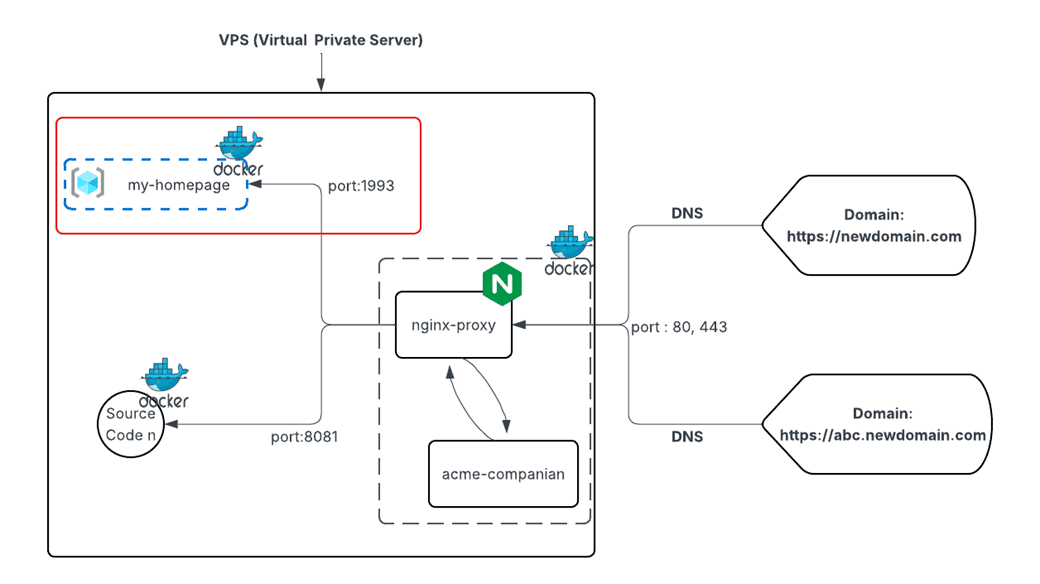
- VIRTUAL_PORT: This is the port that links this project to the nginx-proxy (e.g., 1993).
- LETSENCRYPT_HOST: This must match the domain you entered in VIRTUAL_HOST.
- LETSENCRYPT_EMAIL: Change this to your email address.
- Network Name: Change my_tailt_shared_net to your my-bridge-network.
The system for these projects will follow this model:
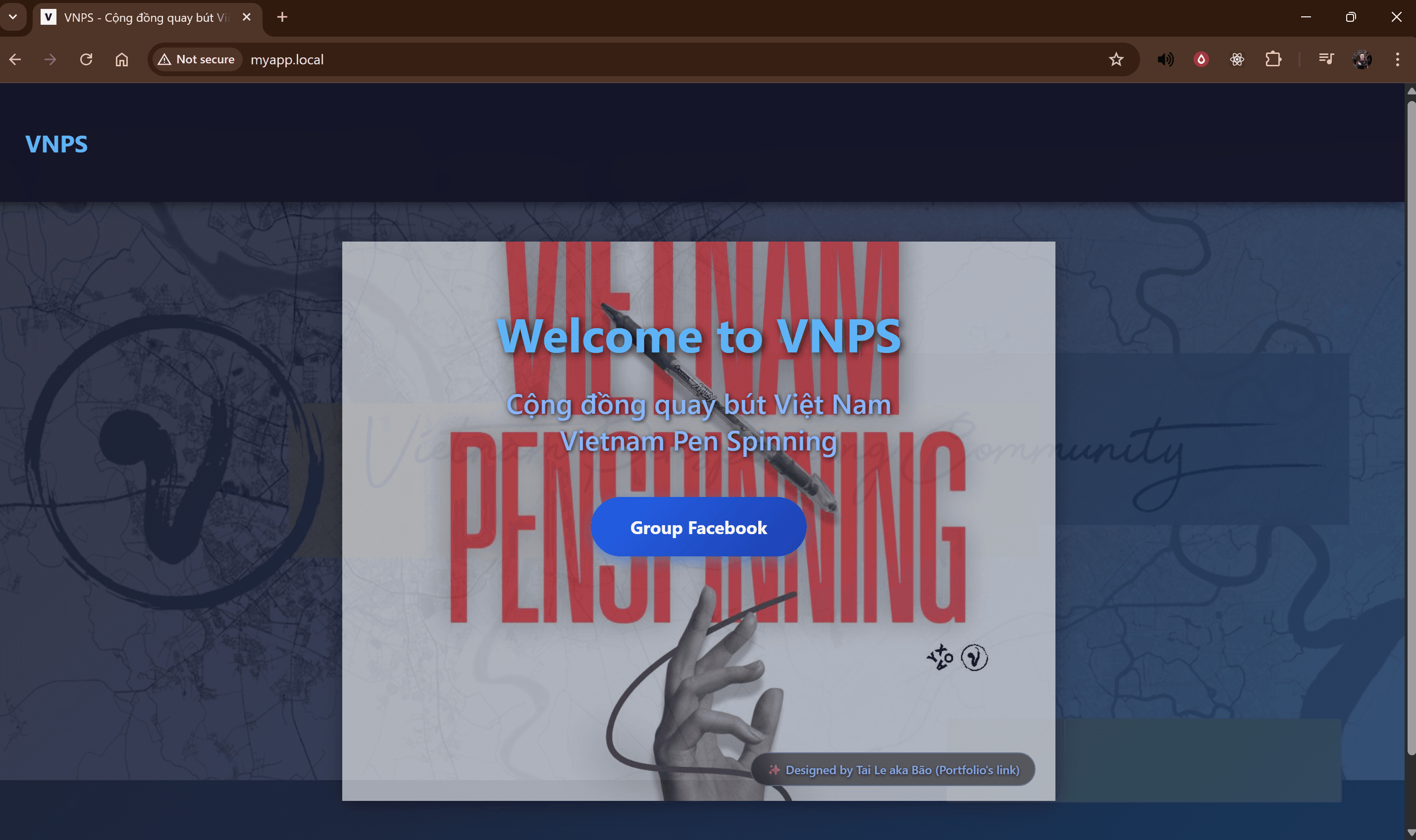
Final Part: Publish your website
What's Next?
Technologies Used
- HTML, CSS.
- Github Workflow: Automatically test, build, deploy to VPS.
- Docker: For acceleration, better CI/CD support, easier to change and move.
- Nginx: Acts as a webserver, helping reverse proxy to navigate apps on the server.
- VPS (Virtual Private Server): Acts as a storage, storing everything and keeping evertything always online.